

Organic KPIs - Google Search Console
Feb 12, 2025●
2
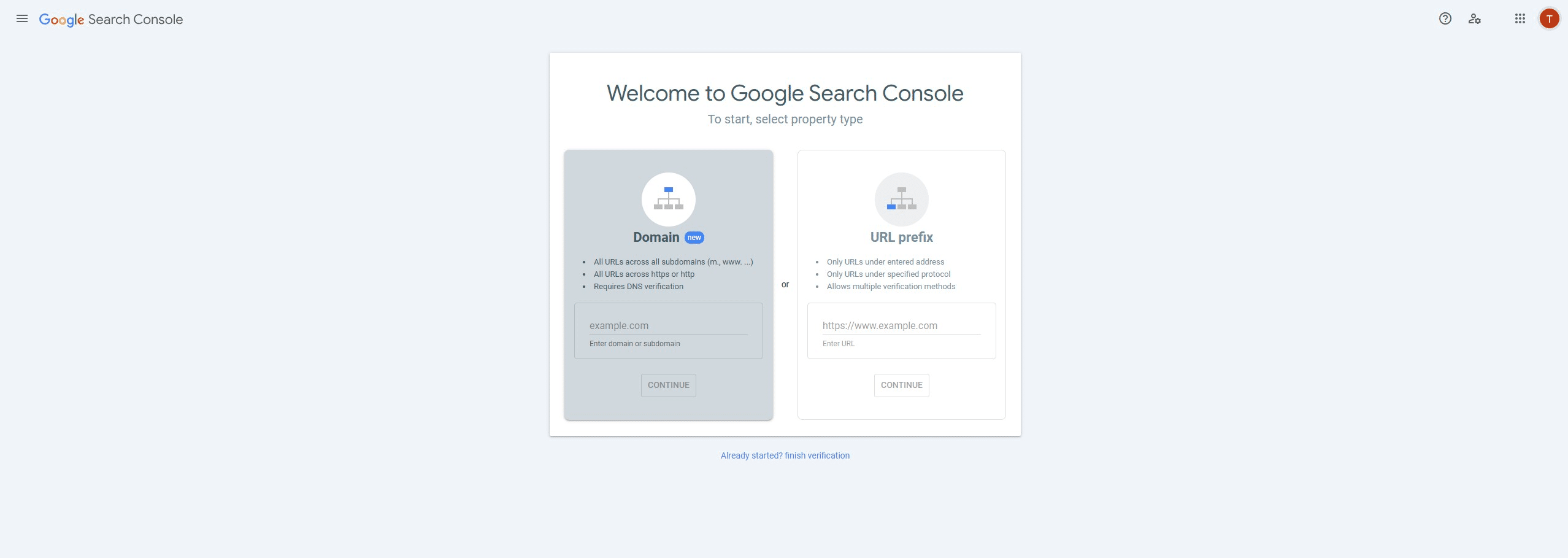
If necessary, change the Google account
3
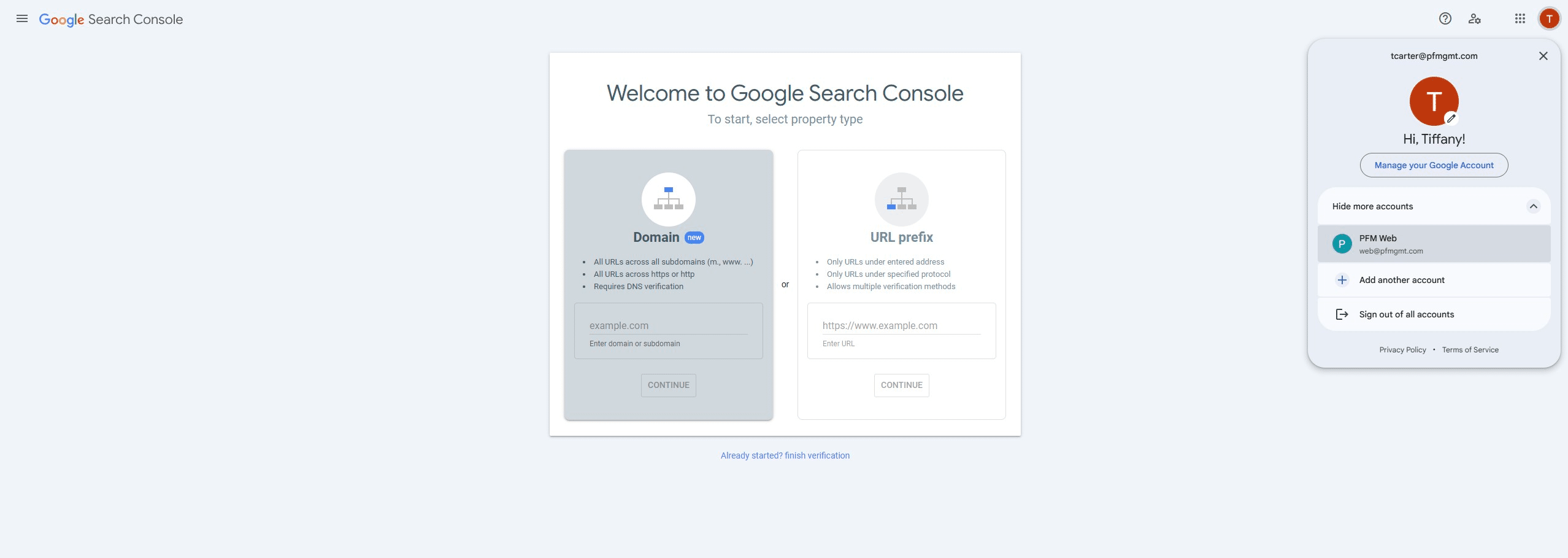
Log in as "web@pfmgmt.com"
4
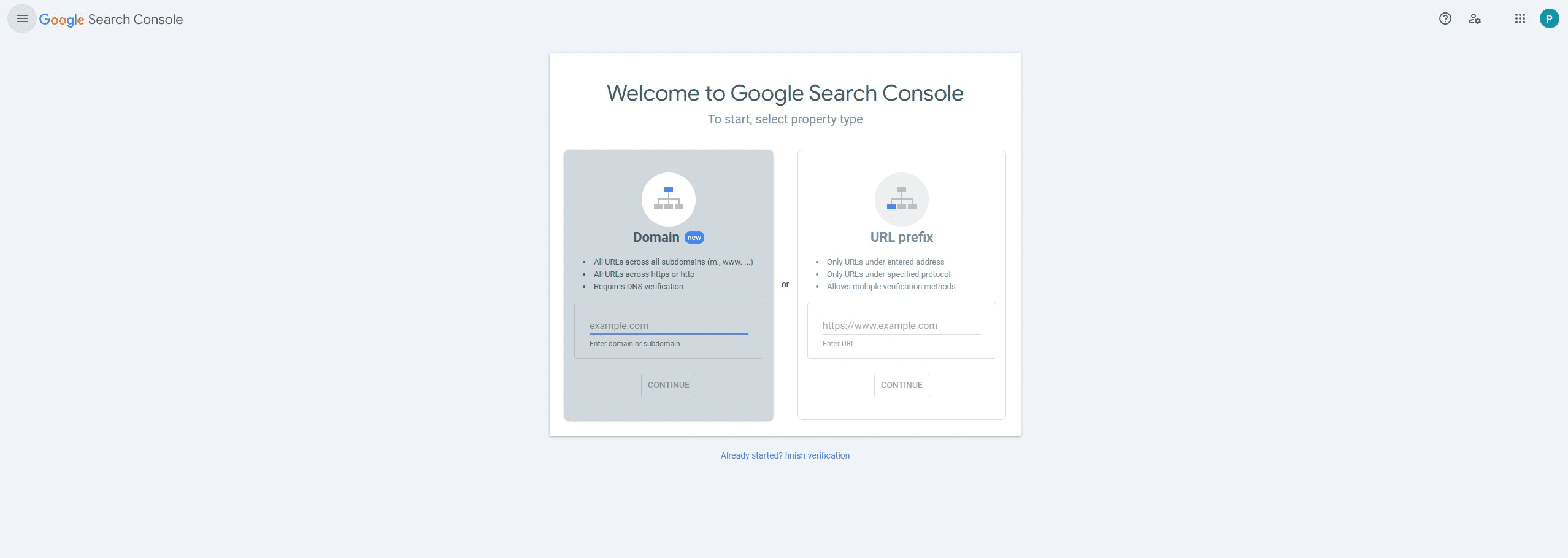
Expand the menu
5
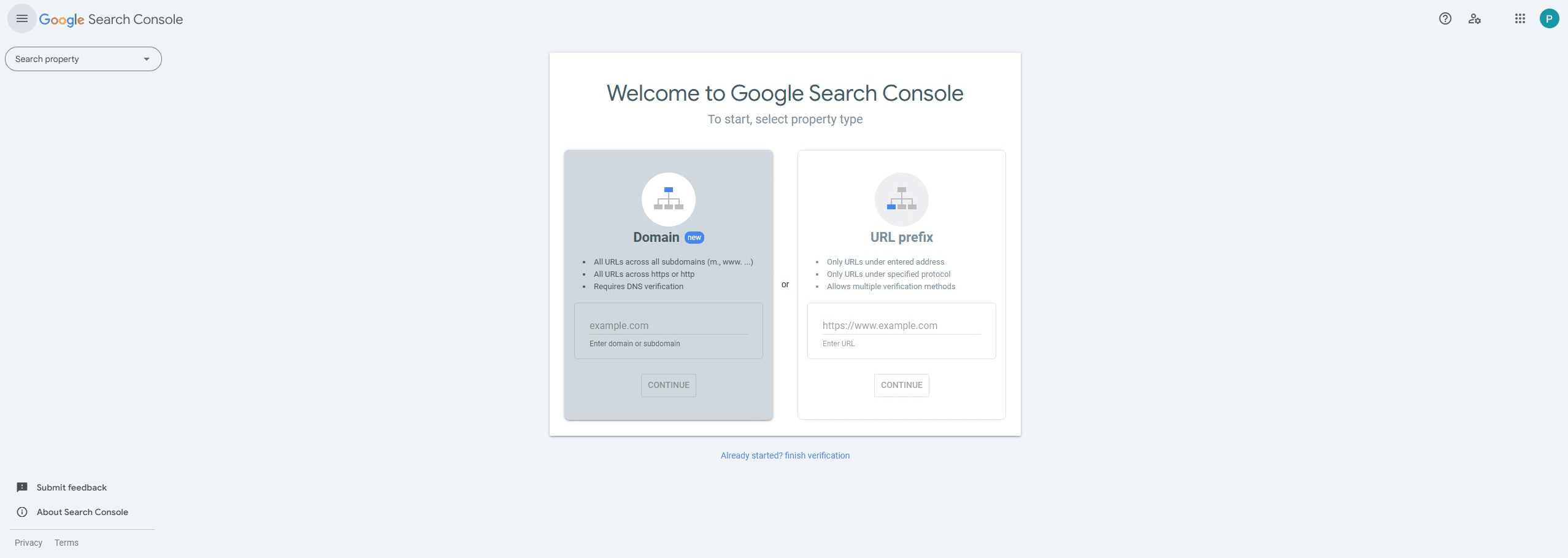
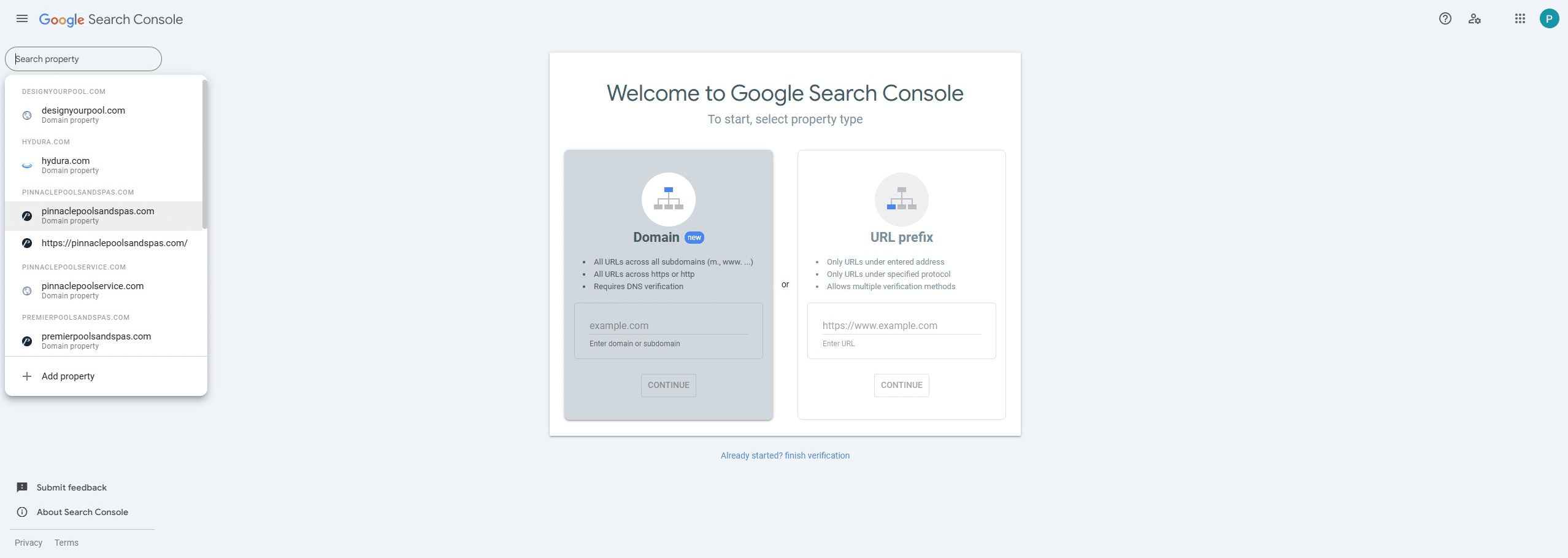
Click 'Search property'
6
Click on the brand "Domain property"
7
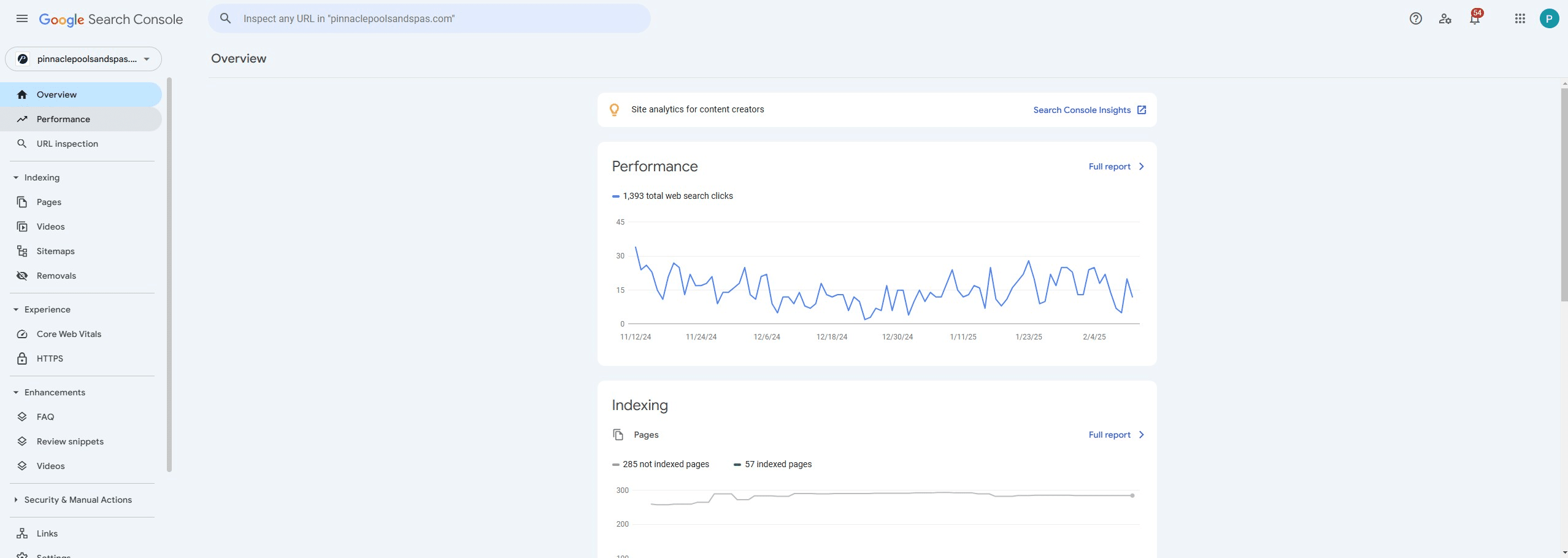
Click on "Performance"
8
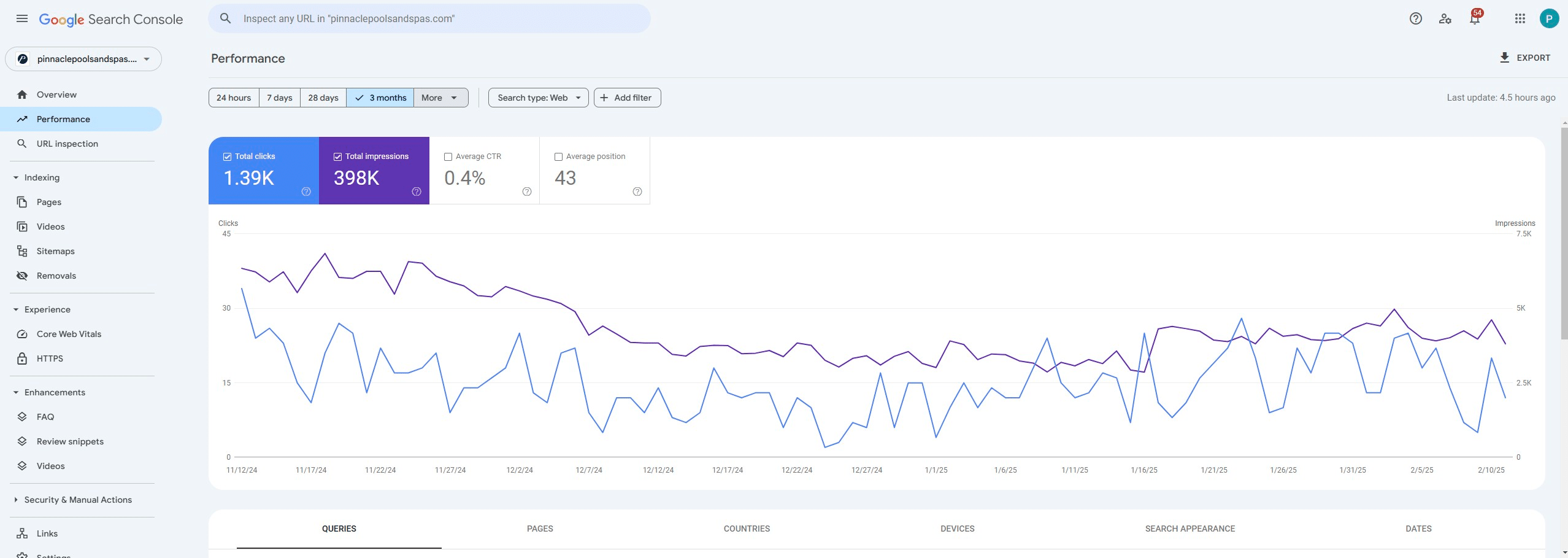
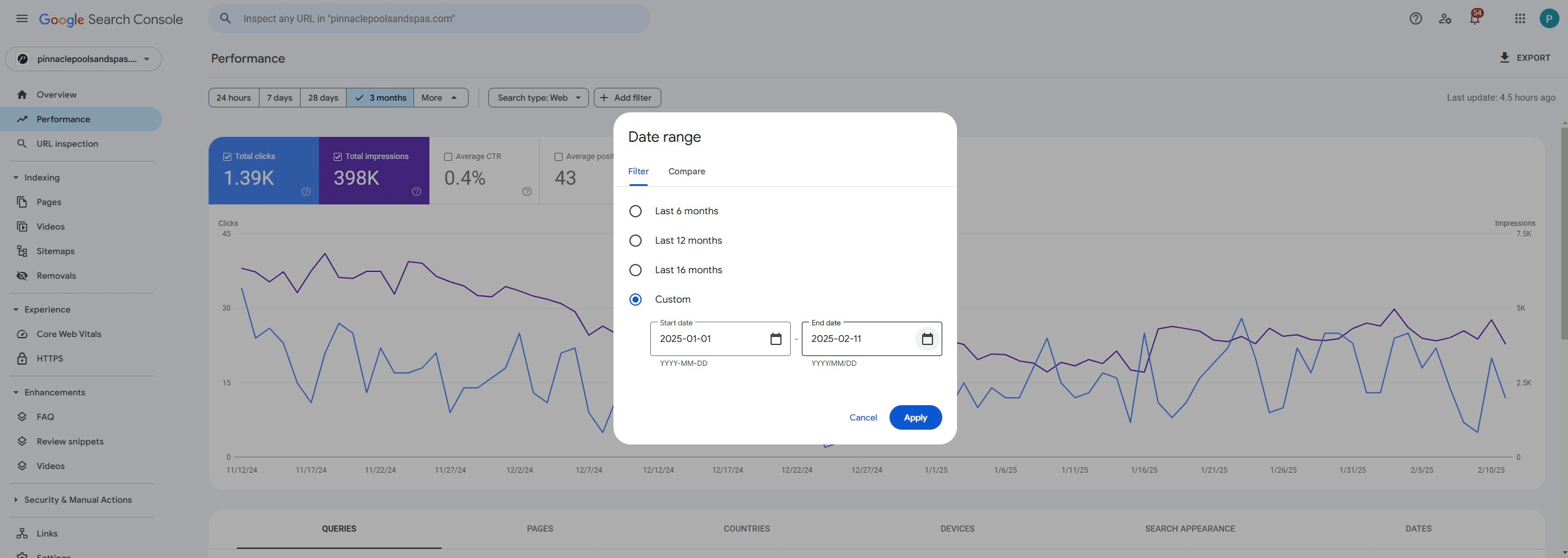
Select 'More' for date options
9
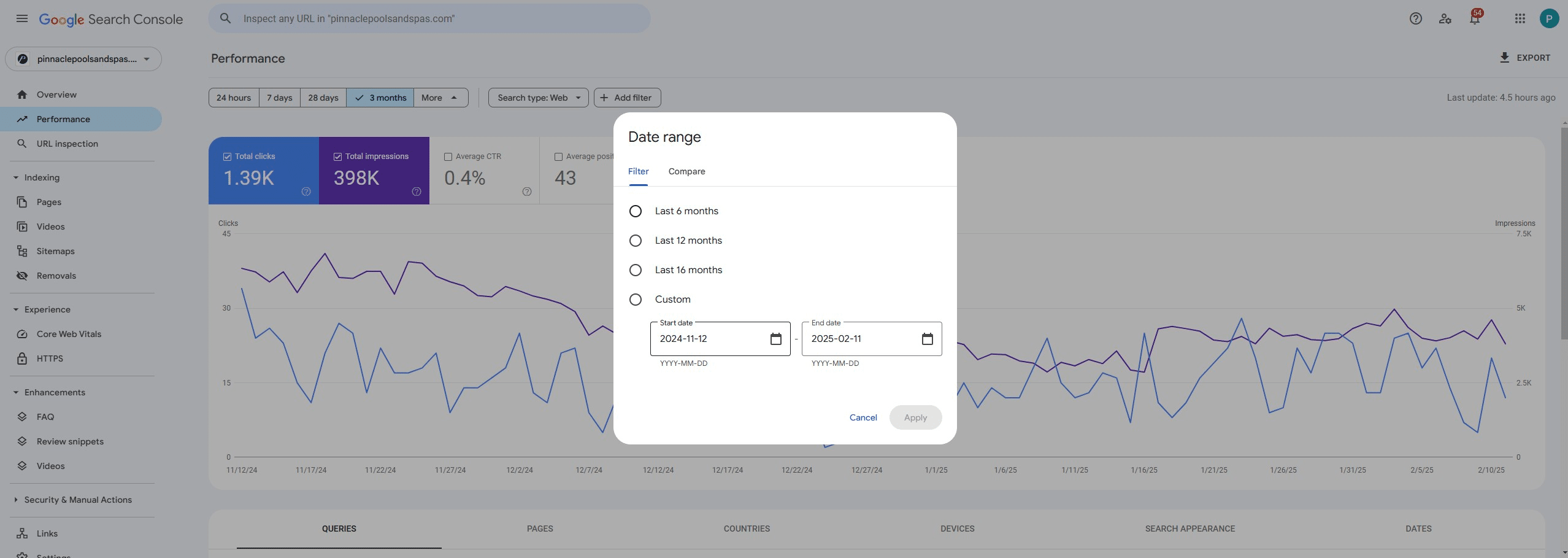
Under custom, choose start date
10
Choose end date
11
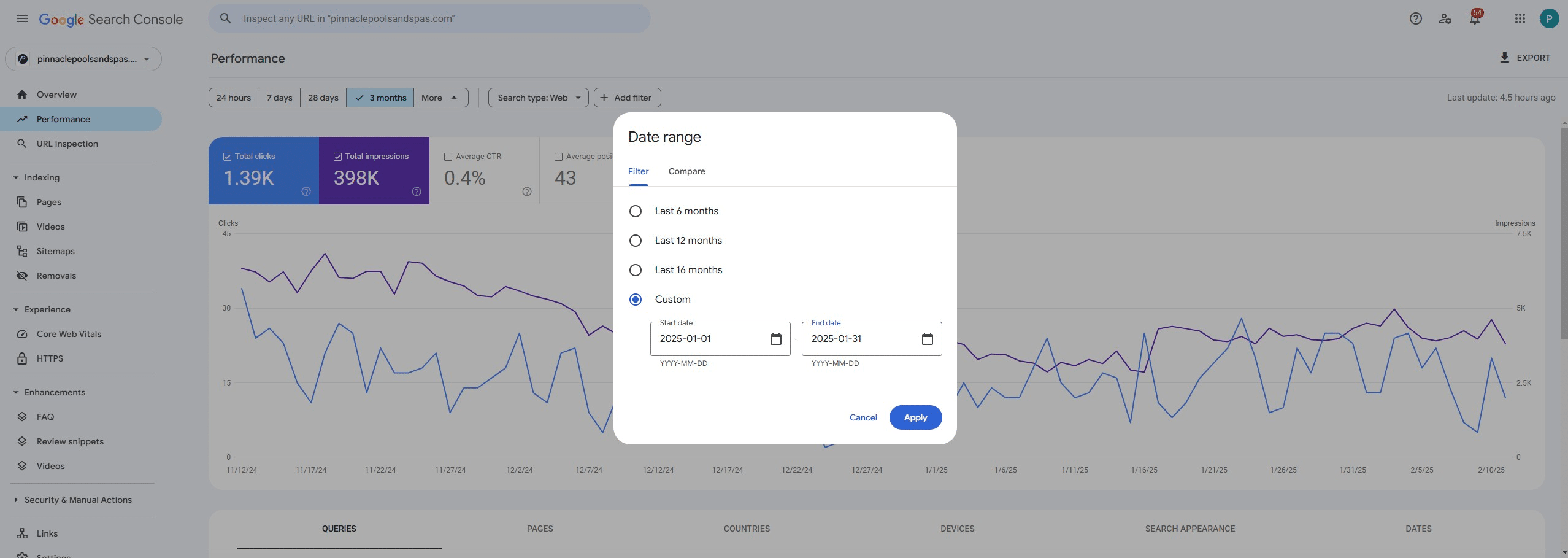
Click on "Apply"
12
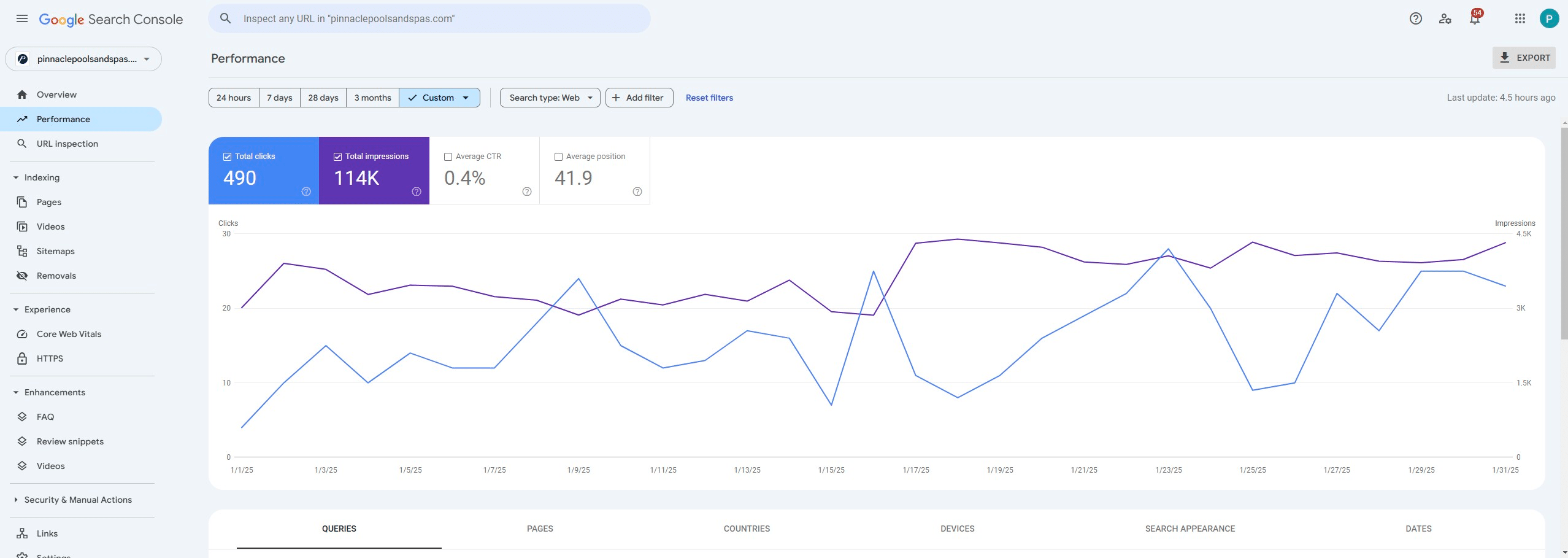
Click on "EXPORT"
13
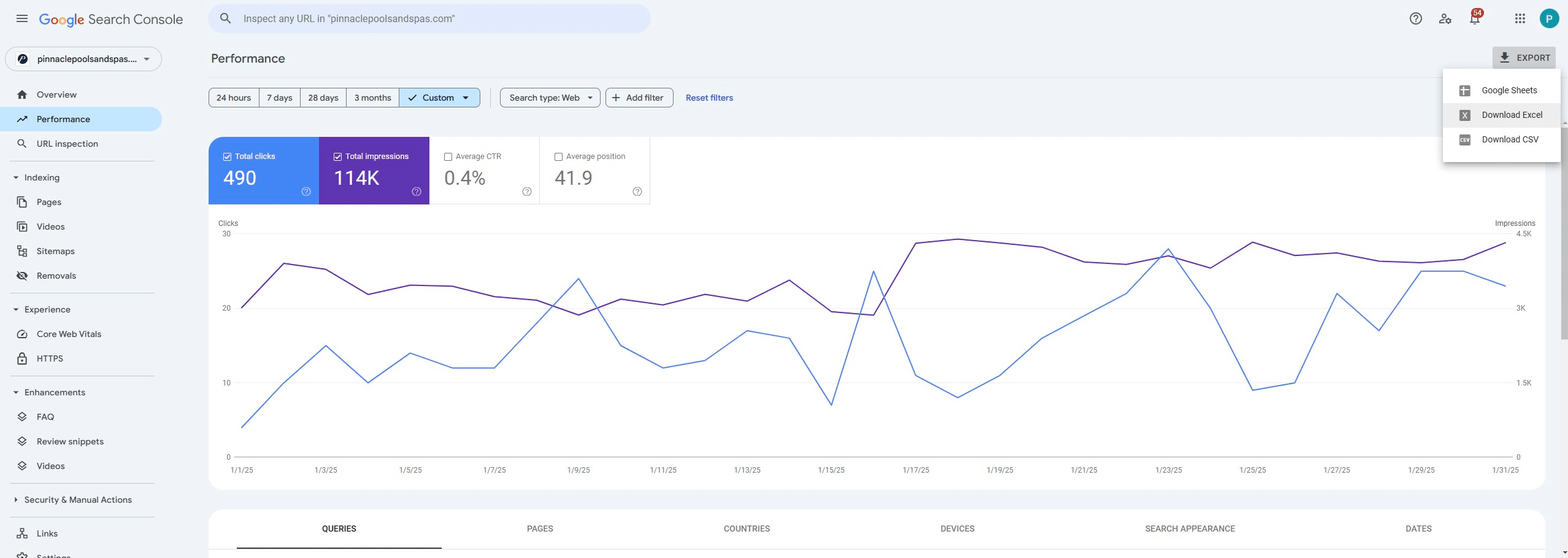
Click on "Download Excel"
14
Open the downloaded xlxs file and save the "Dates" tab as a .csv file as "BRAND (underscore) Search Console (underscore) YYYYMM.csv"
File path: PFM WEB/IT > Admin > KPI > Data Sources > Google Search Console
0:00 / 0:00
Repeat for each brand